Get up and running with Large Language Models (like DeepSeek-R1)
Auteur: Siu-Ho Fung
February 28, 2025
Get Up and Running with Large Language Models Locally
Large Language Models (LLMs) have revolutionized natural language processing and AI applications. With advancements in open-source models, you no longer need cloud-based APIs to run powerful AI systems. You can now run models like Llama 3.3, DeepSeek-R1, Phi-4, Mistral, Gemma 2, and many others locally on your own machine. For the best performance, running these models on a fast GPU significantly accelerates processing, but if you don’t have one, they can still run on a CPU, albeit with slower response times.
Why Run LLMs Locally?
Running large language models on your own system offers several advantages:
- Privacy: No data leaves your local machine.
- Cost Efficiency: Avoid API costs and subscription fees.
- Customization: Fine-tune models to your specific use cases.
- Offline Availability: Run AI without an internet connection.
Getting Started with Ollama
To easily set up and run LLMs on your local machine, you can use Ollama, a streamlined framework designed for efficient deployment of AI models. Follow these simple steps to get started:
Installation Steps for Different Operating Systems
The installation process for Windows, macOS, and Linux. Follow the steps below for your respective system.
Windows
- Download and install Ollama from ollama.com/download.
- Open Command Prompt (Search for CMD in Windows) and install the desired model:
ollama pull deepseek-r1:7b - Run the model:
ollama run deepseek-r1:7b - Interact with the model using the command line.
macOS
- Download and install Ollama from ollama.com/download.
- Open Terminal and install the desired model:
ollama pull deepseek-r1:7b - Run the model:
ollama run deepseek-r1:7b - Interact with the model through the command line.
Linux
- Download and install Ollama from ollama.com/download.
- Open Terminal and install the desired model:
ollama pull deepseek-r1:7b - Run the model:
ollama run deepseek-r1:7b - Use the command line to interact with the model.
Expanding to More Models
Ollama supports a variety of models beyond DeepSeek-R1:7B. You can install and run other models using similar commands. Some popular choices include:
- Llama 3.3
- Mistral
- Phi-4
- Gemma 2
To install and run any of these models, replace deepseek-r1:7b with the model name:
ollama pull mistral
ollama run mistral
Running LLMs locally has never been easier with tools like Ollama. Whether you're exploring AI for development, research, or personal projects, having models on your machine provides full control over privacy, costs, and performance. Start experimenting today and unlock the potential of AI on your own hardware.
Usage example using CLI (Command Line Interface like Windows Command Prompt or Linux Terminal or Tabby):
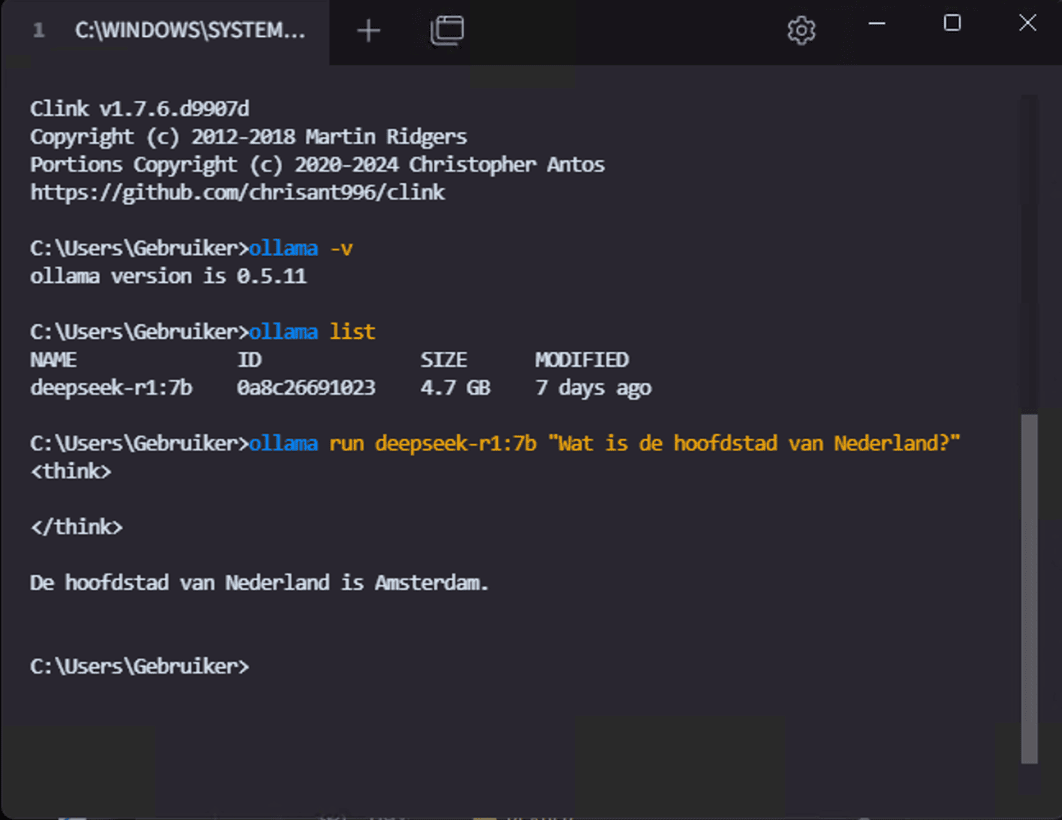
C:\Users\Gebruiker> ollama -v
ollama version is 0.5.11C:\Users\Gebruiker> ollama list
NAME ID SIZE MODIFIED
deepseek-r1:7b 0a8c26691023 4.7 GB 7 days agoC:\Users\Gebruiker> ollama run deepseek-r1:7b "Wat is de hoofdstad van Nederland?"
<think>
</think>De hoofdstad van Nederland is Amsterdam.
Making Ollama more user-friendly
To make interacting with Ollama more user-friendly, we can use Page Assist,
a browser extension that allows you to chat with AI using the running Ollama model.



Schrijf in voor onze Nieuwsbrief
Hebt u vragen of hulp nodig? Wij helpen u graag.
Leverancier van betrouwbare serveroplossingen en opslag. Systeemintegratie van servers en opslag van fabrikanten zoals Supermicro, ASUS, NetApp, HPE, Dell, GIGABYTE, ASRock, Western Digital, Seagate, Micron, Chenbro, Toshiba. Wij leveren wereldwijd: Brussel, Parijs, Madrid, Rome, Amerika, Dubai en meer.